
Select a product:
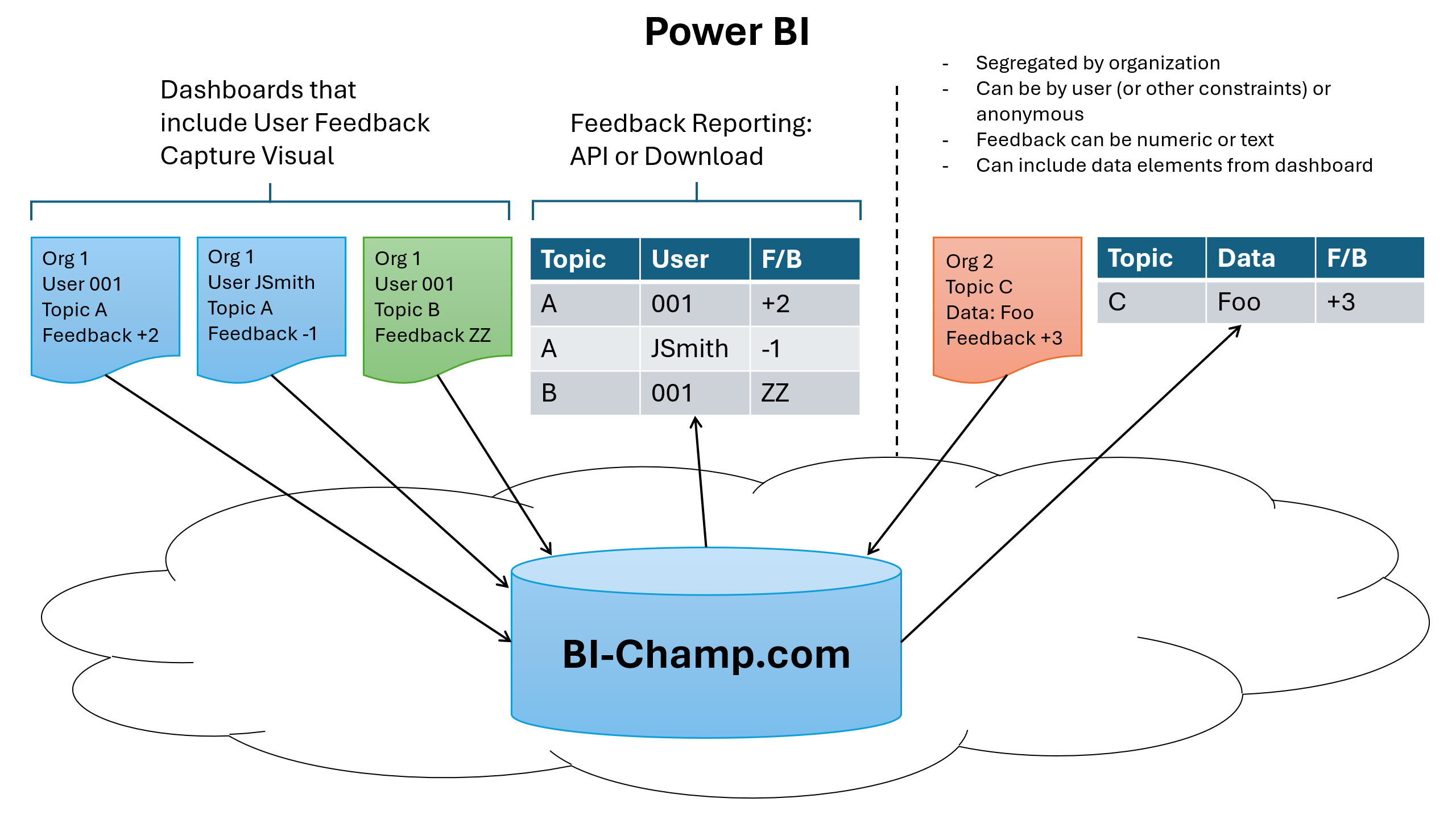
How It Works...
Prerequisite: Your BizIntelligenceChampions.com Account
- Create a free account, then confirm your email address — that is what issues the key. You will then receive complimentary usage credits and a trial organizational license key so that you can test the User Feedback Capture visual (and all other visuals, too!).
- On your account, go to the User Feedback Visual tab, create and save one or more topics. A topic represents a subject area of interest that you want to collect feedback for. For example, one topic could be "rate your opinion on a scale of 1-10 about a particular dashboard" and another might be "vote for your salesperson of the month, based on sales figures shown." These are very different in nature - one captures a 1-10 scale, another captures a simple vote count, based on some data in the report - so they make sense as different topics. Every topic has a unique identifier that can be copied from the Topics list and pasted into your User Feedback Capture visual's "Topic ID" setting.
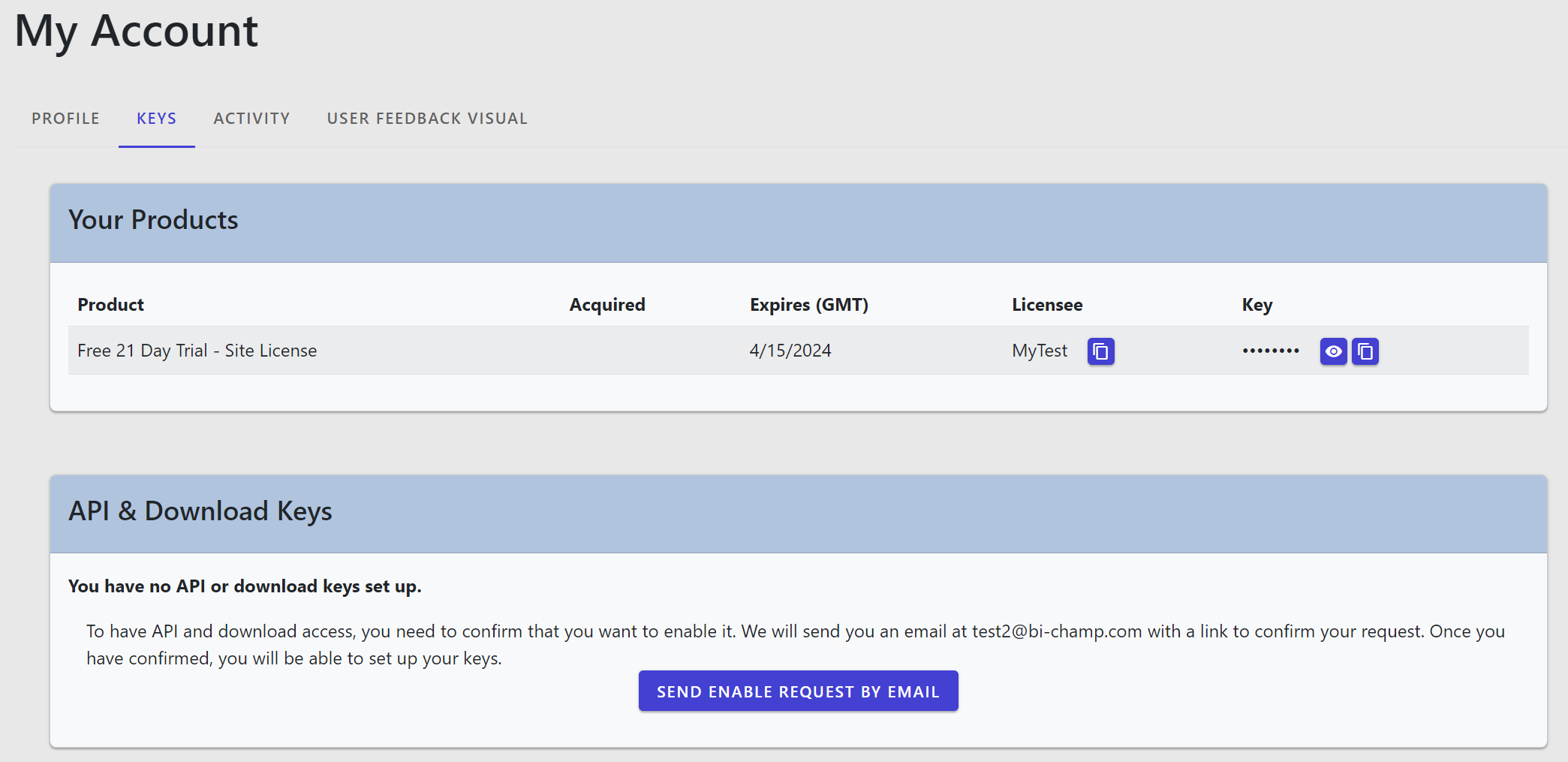
- It only makes sense that you'll want to report on the feedback you collect. In order to do that, you'll need to enable API/Download access for your account. To do so, go to the Keys tab. You'll need to enable access by: a) click on "Send Enable Request by EMail", b) go to your email account, open the confirmation email and click the link in it. The link should bring you back to bizintelligencechampions.com where you can return to your account.
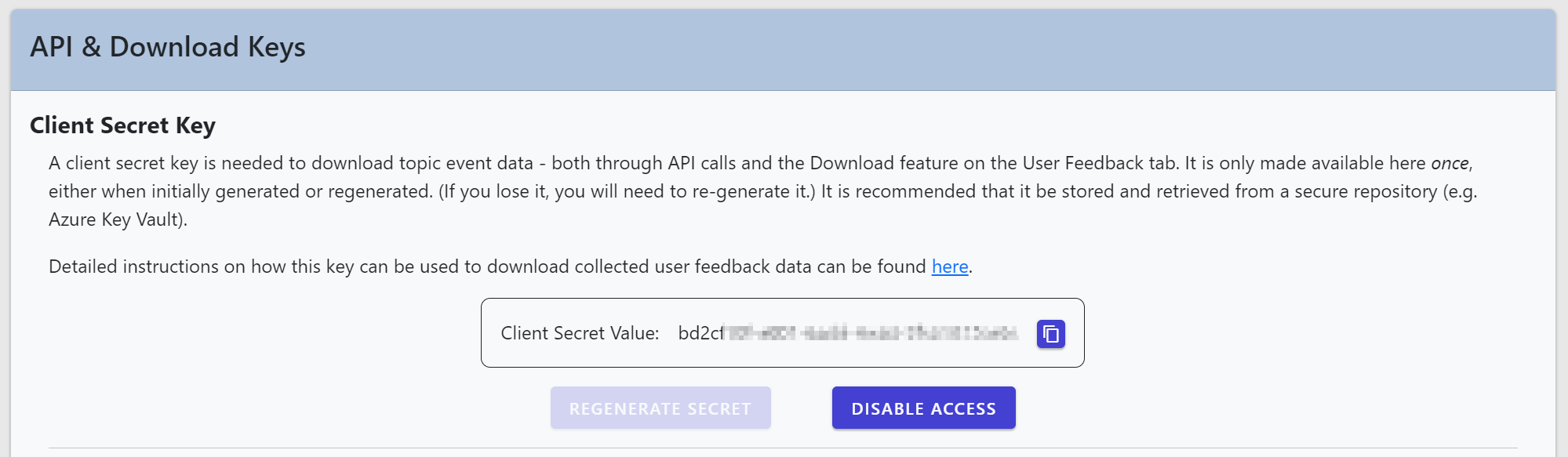
- You'll now need to generate a client secret. Click the "Generate Secret" button, on the Keys tab. If you intend on using API access, you'll need to copy and retain the key that is shown when you first generate or regenerate your secret. If you only plan on downloading the data as CSV or JSON from your User Feedback Visual tab, then you do not need to retain the client secret value. It will only be displayed when generated or regenerated. Your client secret should be 36 characters long.
- You can optionally apply a higher level of security by generating a rotation key. This is a value that becomes part of your client secret (appended to the end of it), and is changed by bizintelligencechampions.com on an interval that you can select (30, 60, 90, 180, or 365 days). What this means in practice is you'll need to update your client secret as used for API data access, on a regular cadence. You can optionally receive an email with advance notice of the new rotation key value, and you can update your secret in your reports with this new key, on receipt. When using a rotation key, your client secret should be 72 characters long.
Your Dashboards and Reports
- Add the User Feedback Capture Visual to dashboards where you wish to capture user feedback, such as sentiment, confirmation, input, etc.
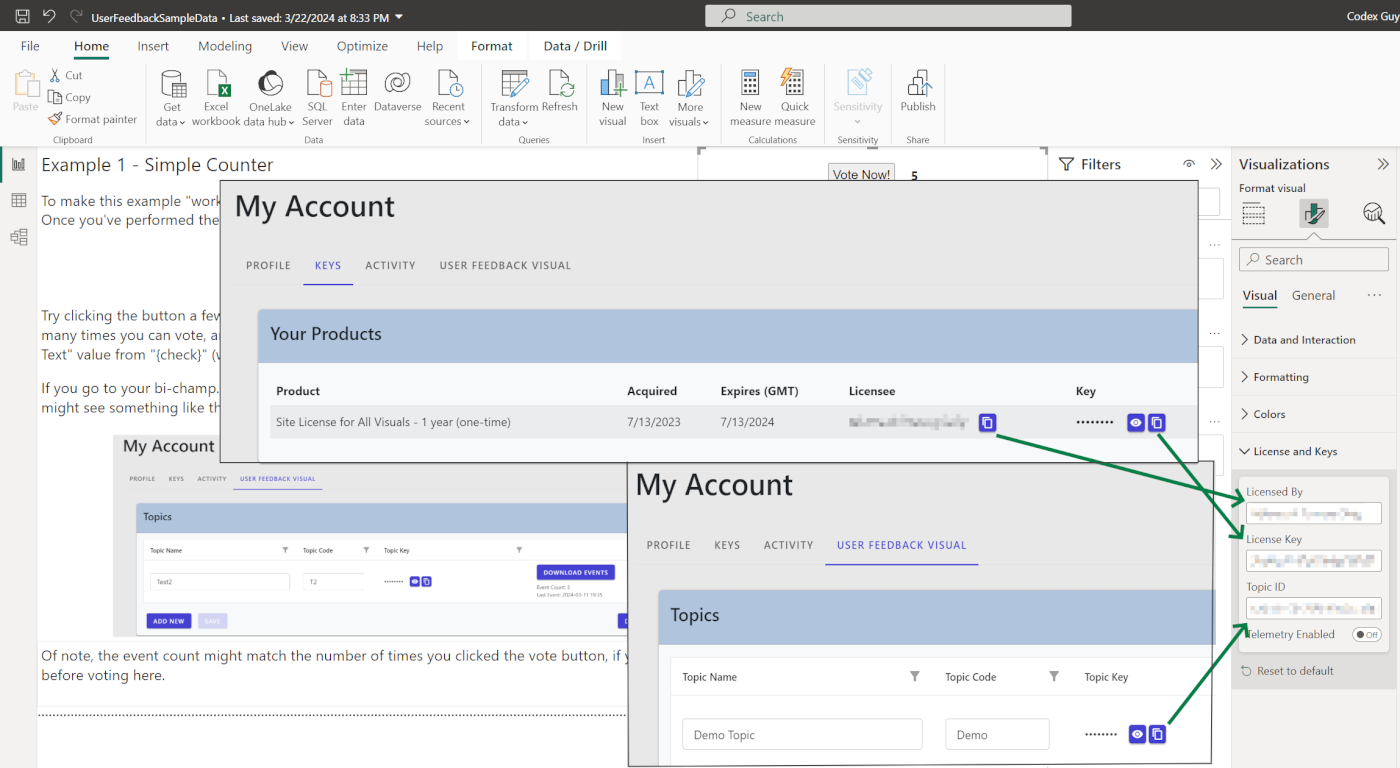
- Go to the visual's settings. Under "License and Keys", set the "Licensed By" and "License Key" settings. For convenience, you can copy these values from the Account > Keys page using the Copy button next to each.
- Also under "License and Keys" is the "Topic ID", which comes from the Topics list.
- Setup the visual's other settings and data fields to match the type of feedback you want to capture. The demo PBIX file offers several examples of how you might want to use the visual.
- Start collecting feedback! This can be done in both Power BI Desktop and Power BI Service.
- Group By: The group by data well can hold zero, one or many fields from your semantic model. The idea is you can include this data alongside any feedback, to give the feedback context. If you use a repeater style, you can have feedback given for all values produced from the group by fields; otherwise, your feedback will be associated with the first row of values produced from the group by fields. This means you could have multiple report pages with filters such that feedback could be categorized, by page. Or you could use a table-style and have feedback collected for different values, within a page.
- Constrain By: You can drag zero, one or many fields from your semantic model into the constrain by well. Values here are similar to the "Group By" well in that any feedback is correlated to these values. However, they are not shown when using a tabular style format. They have the special characteristic of letting you limit voting, depending on other settings for the visual. For example, the "Maximum Counter: Constrain By" setting sets a limit on the number of votes allowed, per the values in the Constrain By well. You could, for example, create a measure called "Username" that is simply the USERNAME() DAX function. If you dragged this value into the "Constrain By" well and set "Maximum Counter: Constrain By" to "1", then a given user would only be able to vote one time.
Reporting on Collected Feedback
- You can download collected feedback data as CSV or JSON files. Do this by visiting Account > User Feedback Visual. You might see something that looks similar to this:
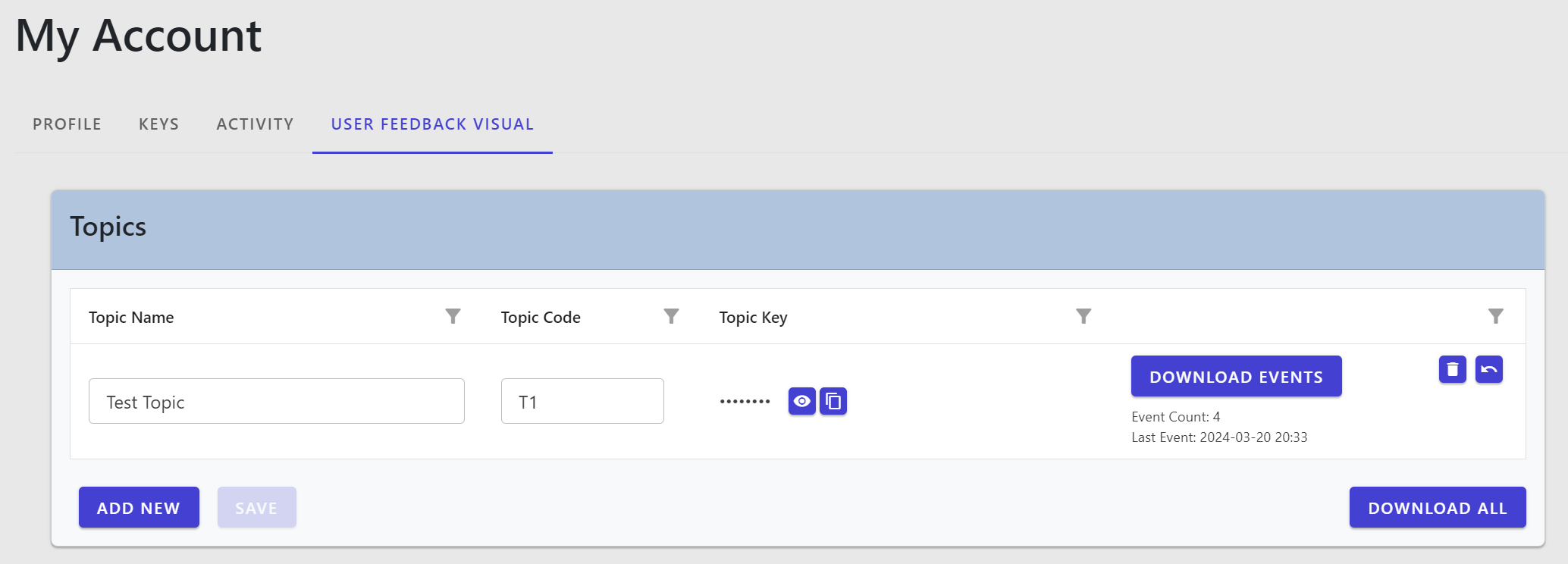
- Clicking "Download Events" downloads for the topic of the selected row; "Download All" downloads all topics (the topic becomes a column in the download).
- Requesting a download shows this type of dialog:
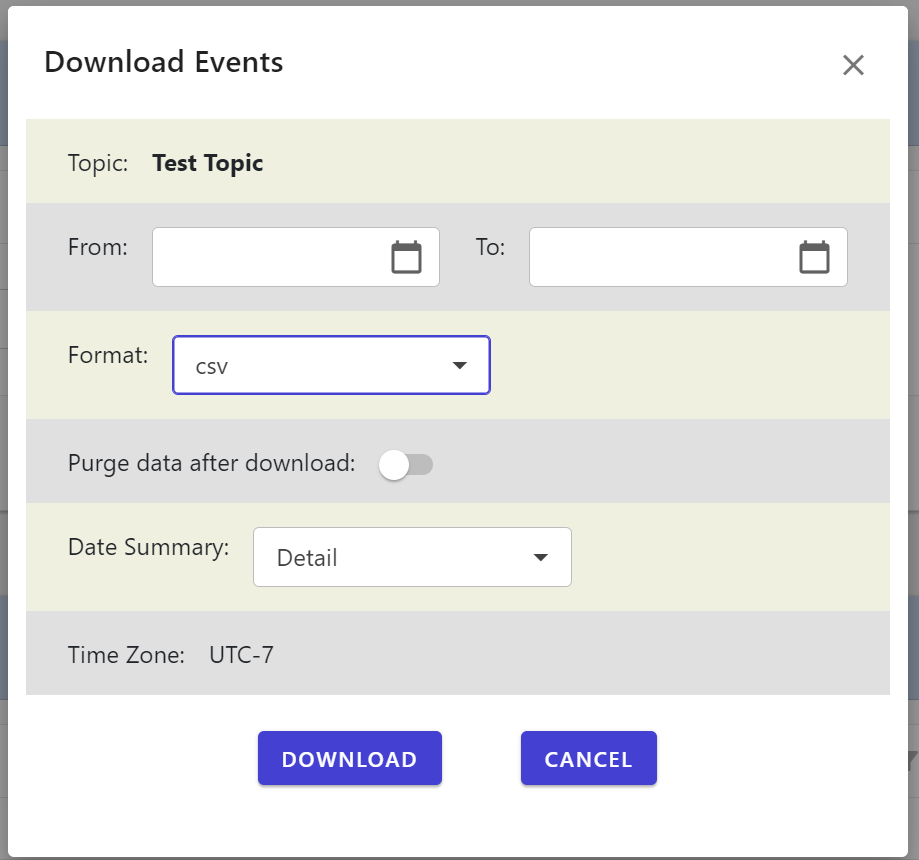
- This lets you optionally select a date range and download format.
- "Purge data after download", when enabled, removes data from bizintelligencechampions after the download. This incurs fewer usage credits but means you cannot query for the same data again. This is practical if you plan to aggregate this data in your own systems.
- "Date Summary" specifies how data is summarized, by date. "Detail" summarizes by "second", where you can also summarize by Day, Month or Year. More summarization means less data needs to be returned, which incurs fewer usage credits, with the trade-off being less granularity in the data.
- The time zone is determined based on your browser time zone and is informational. (Event date/times are adjusted to your local time, based on the browser.)
- You can use a REST API to extract the same data outlined above. One easy way to call it is using Power BI itself!
- The endpoint is https://bizintelligencechampions.com/api/QueryUIResults
- You need the client secret which was explained above (Prerequisite: Your bizintelligencechampions.com Account). You can pass this in the HTTP GET header, or as a query parameter called "token".
- Full set of possible query parameters:
| Parameter | Description |
|---|---|
| token | Your current account client secret. Required (all other parameters are optional) |
| topicCode | The topic key as found on the User Feedback Capture tab, for the desired topic. If omitted, returns data for all active topics. |
| fromDate | Return events that happened only after this date/time. Use a valid date format such as RFC 3339. |
| toDate | Return events that happened only before this date/time. Use a valid date format such as RFC 3339. |
| purge | Valid values: "true", "false". If "true", data returned is removed from the bizintelligencechampions database, incurring fewer usage credits. (default is "false") |
| forFile | Valid values: "true", "false". If "true", the content type will be 'application/octet-stream', allowing the content to be downloaded as a file. (default is "false") |
| format | Valid values: "csv", "json". Controls the format of the returned data, changing the content media type. (default is "csv") |
| timezoneOffset | Allows one to specify a number of minutes to add or subtract from the returned event date, to place it into a specific time zone. (default is "0", which causes dates to be returned in GMT.) |
| culture | Valid values are based on well-known culture codes. Influences CSV encoding. (default is to use a culture invariant format.) |
| dateSummaryLevel | Valid values: 0 (second), 1 (day), 2 (month), 3 (year). The time interval is the lowest level of granularity for the event date, where counters are summed, grouped to this level of summary. Using higher values can return less data, incurring fewer usage credits at the expense of less detail. (default is "0", which provides second-level detail in results.) |
Using the Sample .PBIX
- The sample PBIX can be downloaded from here.
- The demo file includes a number of pages which use the User Feedback Capture visual - but are not wired up to an account, so the default "home page" message is present, explaining what is needed to connect it to an account.
- We recommend creating your own account and topic, to understand the process of setting up your own dashboards. Steps are covered in the section Prerequisite: Your bizintelligencechampions.com Account.
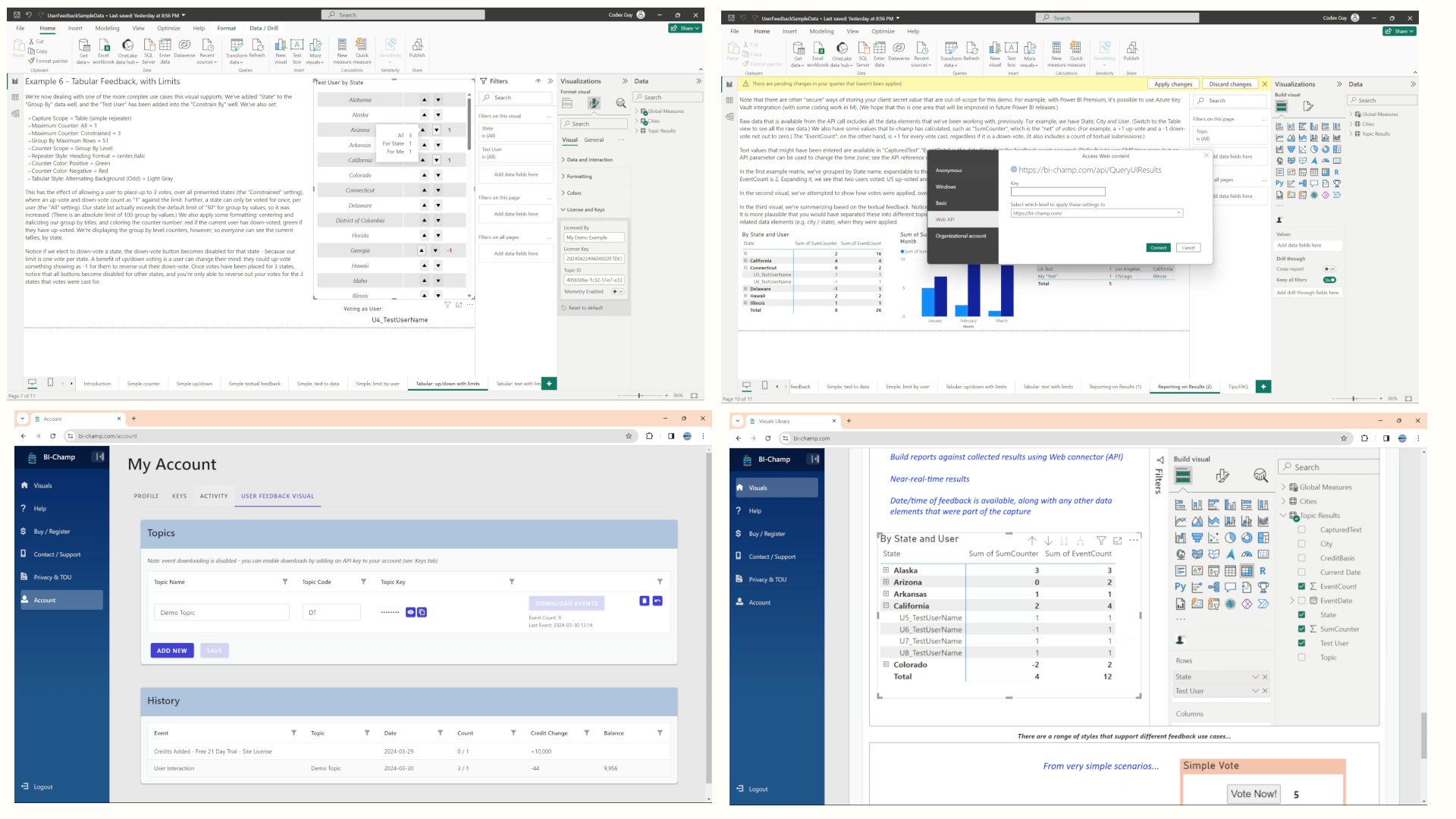
- For example, here we're showing where we're getting the three key values needed by a visual in the demo file:
- The page "Reporting on Results (2)" by default uses some static data that is not connected to your own data: it's there to just illustrate what you might see. However, you can reconnect the visuals on this page to use your own data, using the following steps.
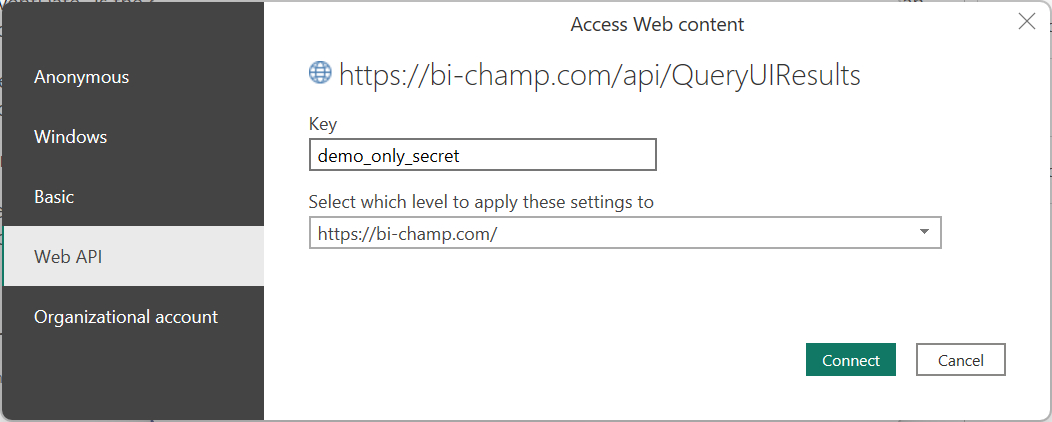
- When you first open the .pbix file or refresh it, you are likely going to be challenged for credentials. You can use Web API and "demo_only_secret" to use "fake" feedback data:
- If you want to use your own data, use your client secret value, in place of "demo_only_secret". You need to establish your client secret here, by clicking on "Send Enable Request by EMail":
- After that, you'll need to click the link in the email that is sent to your email address on file. Returning to your Account, you can then click "Generate Secret" to obtain your client secret value:
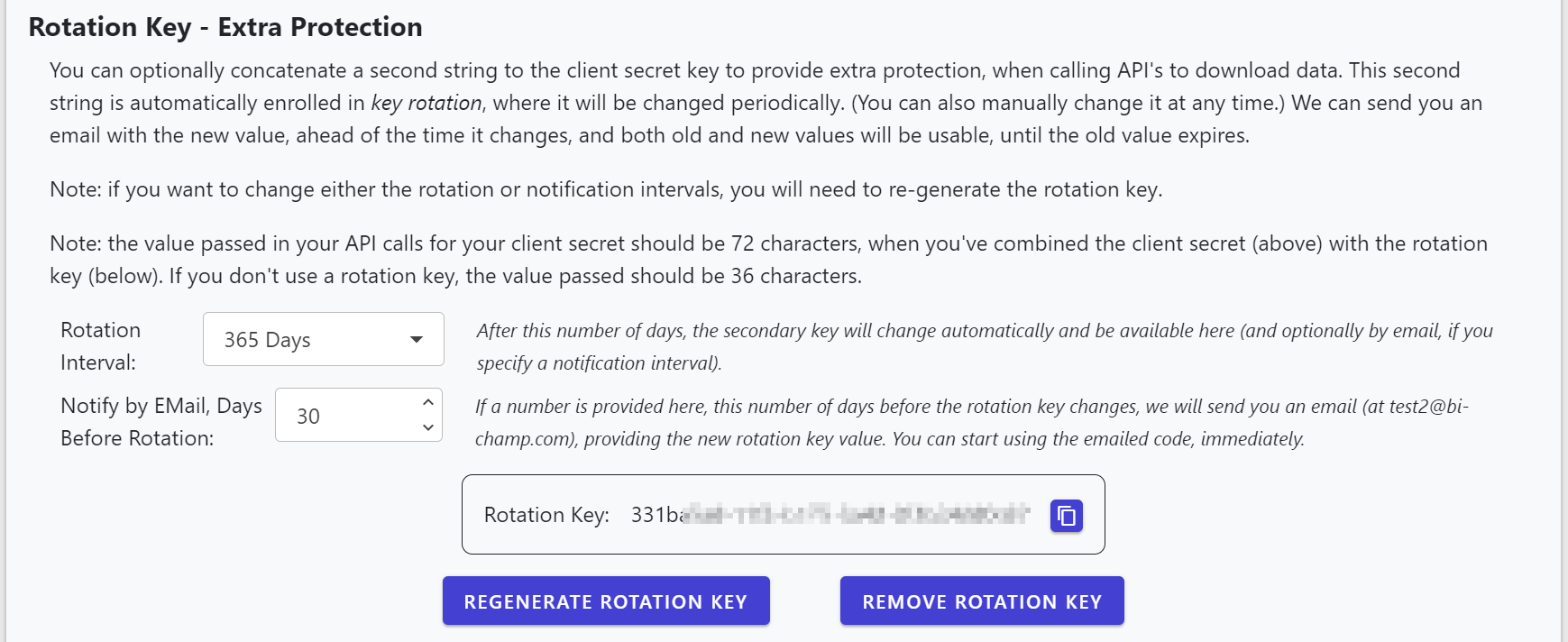
- You can optionally generate a rotation key that is appended to your client secret described above, to become the actual client secret value that you'd use when making API calls:
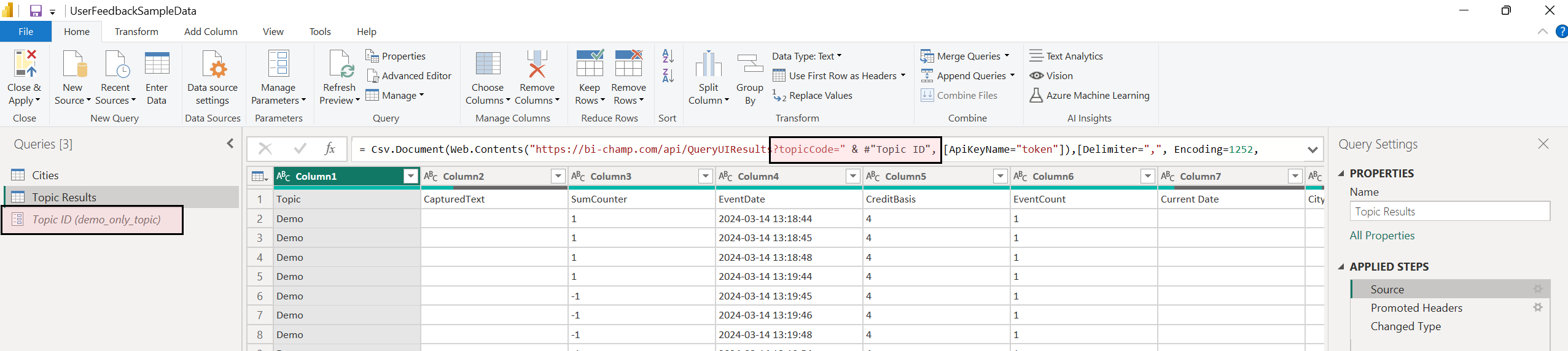
- One additional thing to change in the demo file, is the Topic Key. The demo keeps this as a parameter that you can see being referenced here, in the source of the API call:
- You can click on the parameter for the topic key and provide your own value, from your Account > User Feedback Visual topics list:
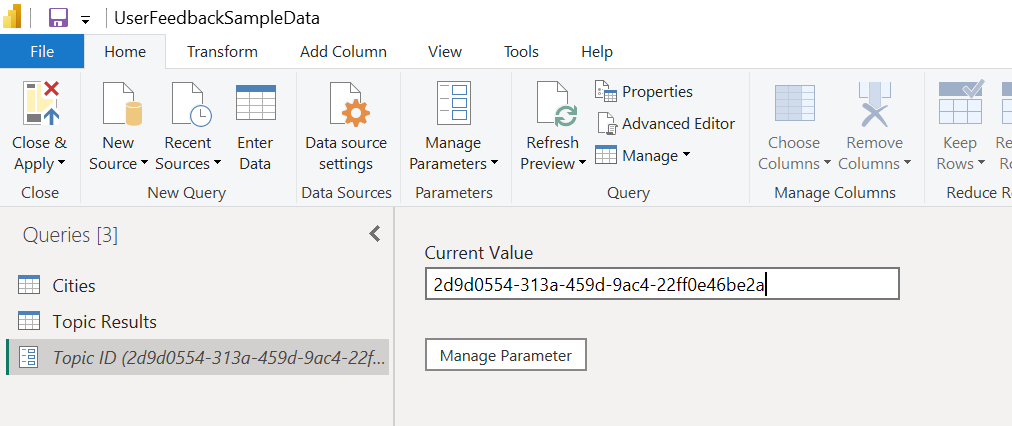
- Once you've closed and applied your changes, you should start to see your own collected data in the demo, on the "Reporting on Results (2)" page.
Licensing
- So you really like the User Feedback Capture visual and want to keep using it after your trial key expires? You can purchase an organizational license on the Buy page. Monthly and annual plans renew automatically until you cancel; fixed 2- and 5-year terms are bought outright. The User Feedback Capture visual is different from our other visuals in that you do not need to update all your dashboards with the new key value that comes with an extension or new purchase.
- Purchasing an organizational key will extend any currently active key's expiry date. You will not lose any days, as such, by buying early. (This applies to trial license keys, as well.) On a subscription this is automatic — each renewal extends from your current expiry date rather than from the payment date.
- Usage credits are included with organizational license key purchases, or you can purchase them independently as well.
- Please note: AppSource licensing is not available for this visual!
Usage Credits Explained
- Your use of the User Feedback Capture visual makes calls to bizintelligencechampions.com, which serves as the repository for feedback. This means bizintelligencechampions.com incurs compute, storage and network costs, when you use this visual. We pass this cost along using usage credits, which are tracked by bizintelligencechampions.com and are tied to your bizintelligencechampions.com account.
- You generally expend usage credits either by submitting feedback or querying feedback results. You do not incur credits simply to refresh a visual.
- Credits will be deducted from your account in near real-time. When you reach a zero credit balance, instances of your visuals will stop working (e.g. they will show an error and no longer render properly).
- You can view your usage credit activity and balance on your Account > User Feedback Visual page.
- You can add credits to your account either by: a) purchasing an organizational license key, b) purchasing usage credits directly. Both options are available on the Buy page.
- Note that some requests which use credits may be denied if they exceed certain maximum limits (e.g. a download request that is too large) or would reduce your credit balance to zero (or less).
- When there is a calculation of "bytes per credit" used, credits required are rounded up.
- When provided data payload values are strings, size is determined by a character count. Dates and numbers use 8 bytes.
- Here's a breakdown of current rates applied to your usage credit balance:
| Activity | Charge | Explanation |
|---|---|---|
| Feedback Given | Base: 1 credit per request Data Payload: 1 additional credit per 5 bytes |
Credits beyond the base are used if the feedback involves a data payload. The payload size is divided by the "bytes per credit" and added to the base credits to determine the full charge. Maximum of 1000 credits per request. |
| Download from Account page | Base (no purging): 10 credits per request, +4 credits per row Data Payload (no purging): 1 additional credit per 1000 bytes Base (with purging): 5 credits per request, +2 credits per row Data Payload (with purging): 1 additional credit per 2000 bytes |
Credits beyond the base are used if there is a data payload included in the download. The payload size is determined, per download row, based on the largest elements for the row. This is then divided by the "bytes per credit" and added to the base credits to determine the full charge. Maximum of 40,000,000 credit basis per request (note: this is not actual bytes, but the bytes that were used to determine credit usage). |
| Download via REST API | Same as Download from Account page. | Same as Download from Account page, except maximum of 10,000,000 credit basis per request. |
Example #1
- Feedback event.
- Send textual feedback "42", plus data that includes the state name of "California" and the user name "JSmith".
- This would incur 5 credits. One credit for the base charge, and 4 credits for length of the strings (18) divided by 5, rounded up to 4.
Example #2
- Querying the event from Example #1, as if it was entered twice, for different users ("JSmith" and "TSmith"). No purging.
- This would incur 20 credits. Ten credits for the base charge, plus five credits for each "row" of data (two rows): four for the base row charge, and one based on the data size (18 divided by 1000, rounded up to 1).
Frequently Asked Questions
Q: Can the visual call my own endpoint instead of using bizintelligencechampions.com?
A: Technically, yes. However, this requires custom development work: both on our side, and on your side. If you have an interest in this, you should contact us directly at info@bizintelligencechampions.com.
Q: Can the visual be used off-line?
A: No. A connection is required, where bizintelligencechampions.com is "reachable."
Q: Can a Power BI report be written using the Web Connector such that it is using live data?
A: A Refresh is needed, since the Web connector does not behave the same way that SQL DirectQuery does. Reference
Q: Are there any firewall requirements in using the visual?
A: Clients that use the visual need to be able to make GET and POST requests from https://bizintelligencechampions.com.
Q: Can performance be improved?
A: Ideally keep your tabular style limited to as few rows as possible. Apart from that, you can contact us at info@bizintelligencechampions.com if you have some recurring performance issues. (Or feature requests, other problems, etc.!)