
AppSource Purchase Guide
There are some important things to keep in mind if you choose to purchase licenses for our products through Microsoft AppSource...
- AppSource licenses are only used in the Power BI Service: they are not available for Power BI Desktop, Embedded, "Publish to Web," Report Server, REST API calls, and National/Regional Clouds including: U.S. Government Community Cloud (GCC), U.S. Government Community Cloud High (GCC High), U.S. Military Contractors (DoDCON), U.S. Military (DoD), Power BI for China cloud. Power BI Desktop does not require a license, and these other environments require an organizational license. (The list of excluded environments may change, so we suggest deploying your report to the target environment and see if "Consider using a site license" is shown in the watermark text, prior to purchasing a license.)
- With AppSource licensing, you do not need to update your report with any license key setting values. There is no license key when you use AppSource licensing.
- An order can be for multiple seats for the product. Each seat is a license for a single user. For example, if you purchase 5 seats, you can assign those seats to 5 different users.
- After purchase, there can be a time lag between when the order is placed and when the licenses are available. Orders can take up to 24 hours to process (although typically an hour or two).
- You need to assign licenses to users - even if you purchased a single license. Licenses are needed for viewers and contributors. We outline the steps to do this, below.
- Billing permissions – If you're part of a company or school tenant, you may need administrative permission to make purchases. Users without billing roles can’t complete AppSource purchases. Check with your IT admin if unsure.
- You may need to save and reopen your report to see license changes take effect.
- If you mistakenly purchase an AppSource license, the good news is the default behavior is to start with a one month free trial. You can cancel the trial before it expires, and you will not be charged.
- Remember: an advantage of AppSource licensing is it can be cheaper, but you do need to manage users, as described below. If you don't want to manage users, we recommend purchasing an organizational license directly from bizintelligencechampions.com.
- Still unsure about the best license? Our What License Is Best For You tool can help you decide which license may benefit you the most.
The general process for purchasing licenses for our products through Microsoft AppSource is as follows...
1. Navigate to the AppSource page for the product you wish to purchase. These could include:
2. Click the "Buy Now" button. You'll be prompted for a Microsoft account email. Use the account that you'd be using with Power BI Service. Important: this should be a work or school account, not a personal account. The account should have billing permissions enabled for it. Check with your IT department or Microsoft support if you receive any errors during purchase (eg. "something went wrong").
3. You'll enter the Checkout process. You'll be asked to enter your payment information and billing address. Watch for a confirmation email from Microsoft to signal that an invoice has been created. (Your first invoice may be for $0, if you are starting a free trial.)
4. Very Important: once your order has been placed, you need to assign the newly purchased license to one or more users. One way to do this is to click the "Assign licenses" button as seen here:
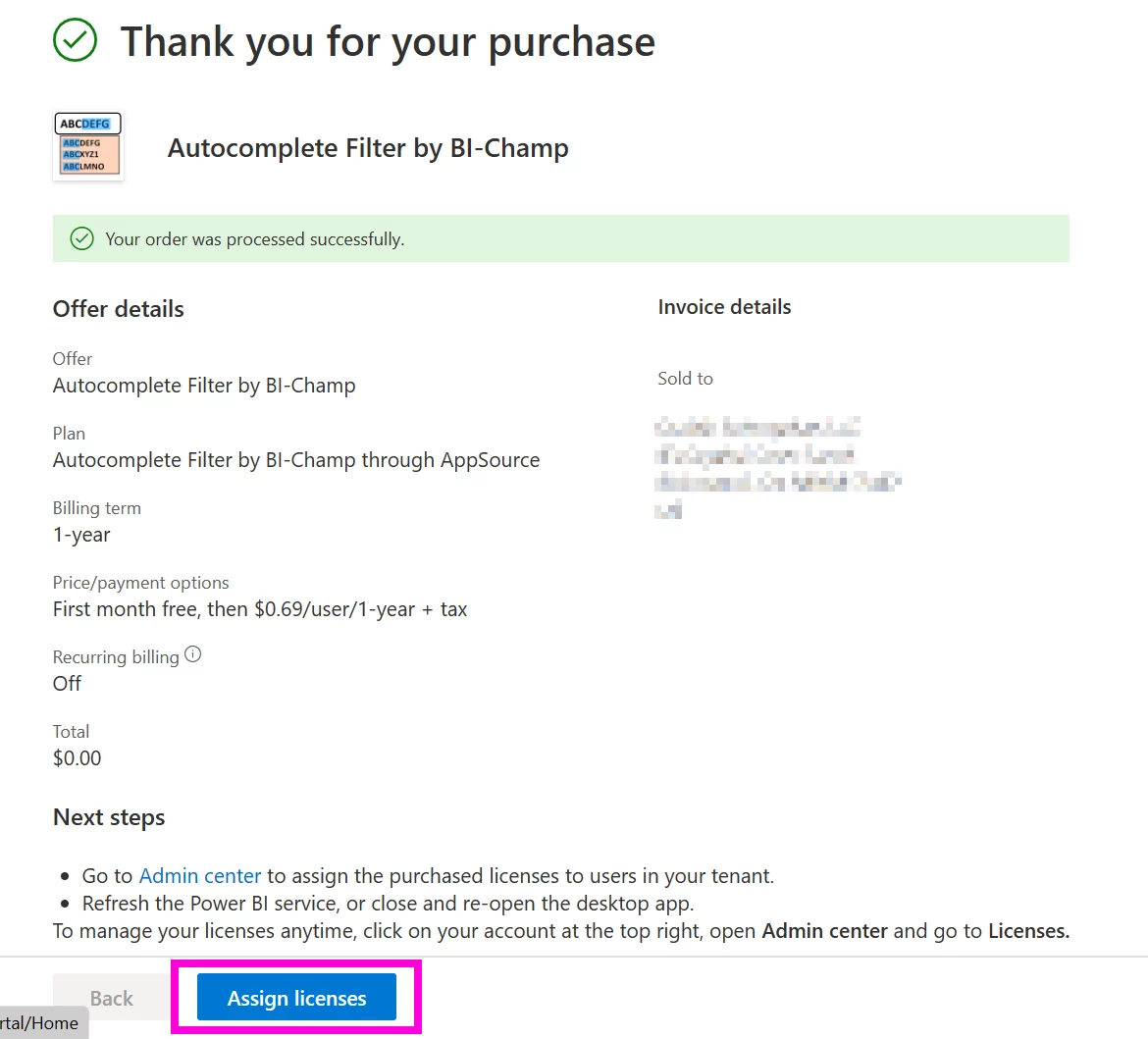
Remember: there may be a delay before the license is available.
Another way is to go to the Microsoft 365 admin center and navigate to the Billing > Your products page:
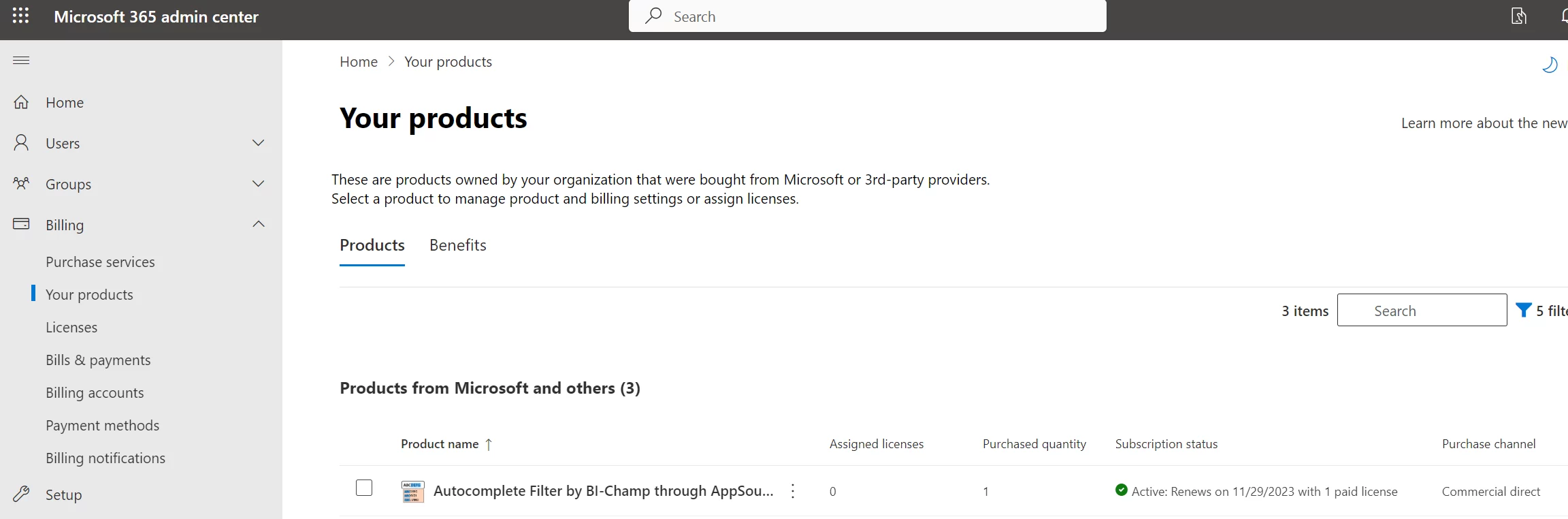
In the above example, the "Purchased quantity" is "1" and the "Assigned licenses" is "0". Clicking on the product name navigates to a page that looks like this:
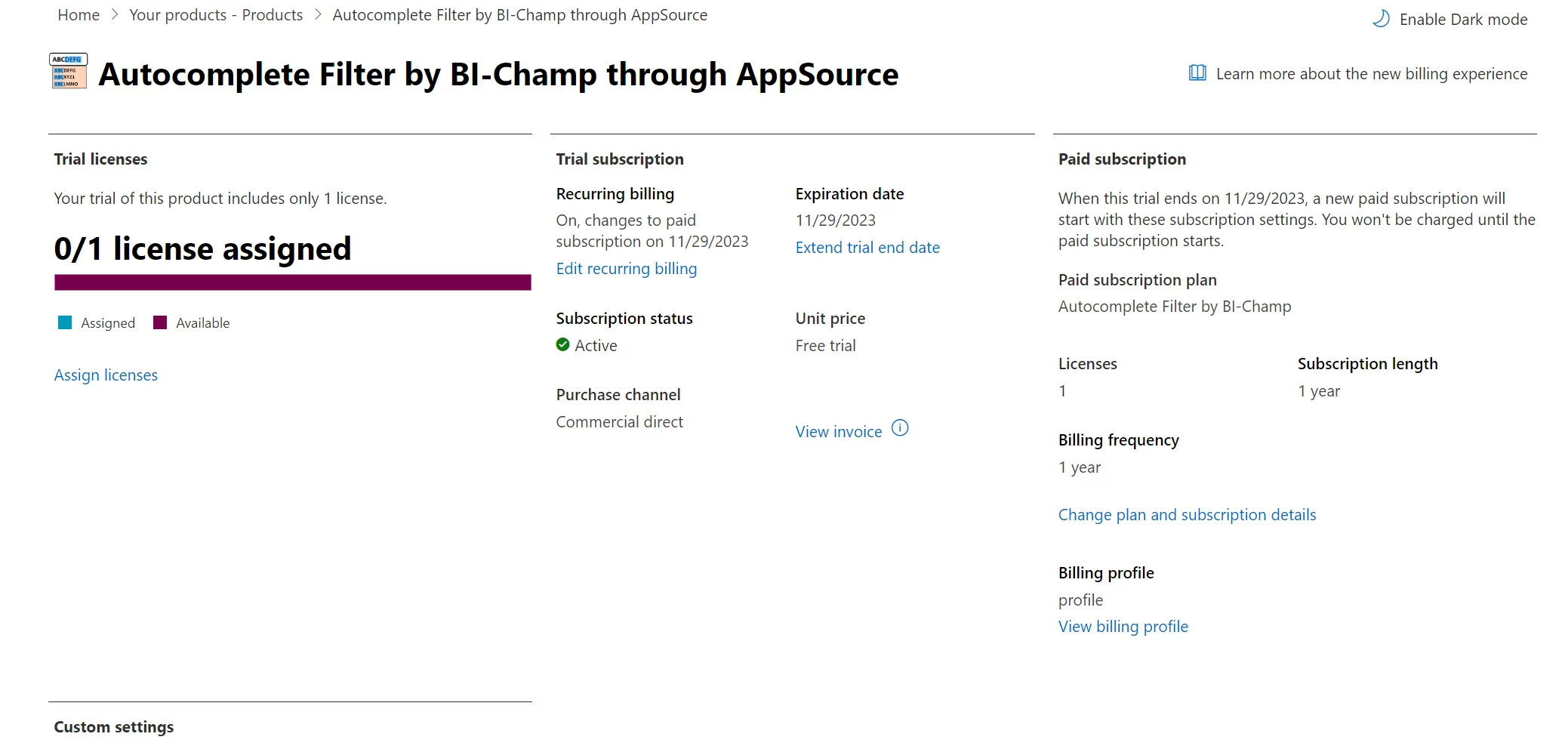
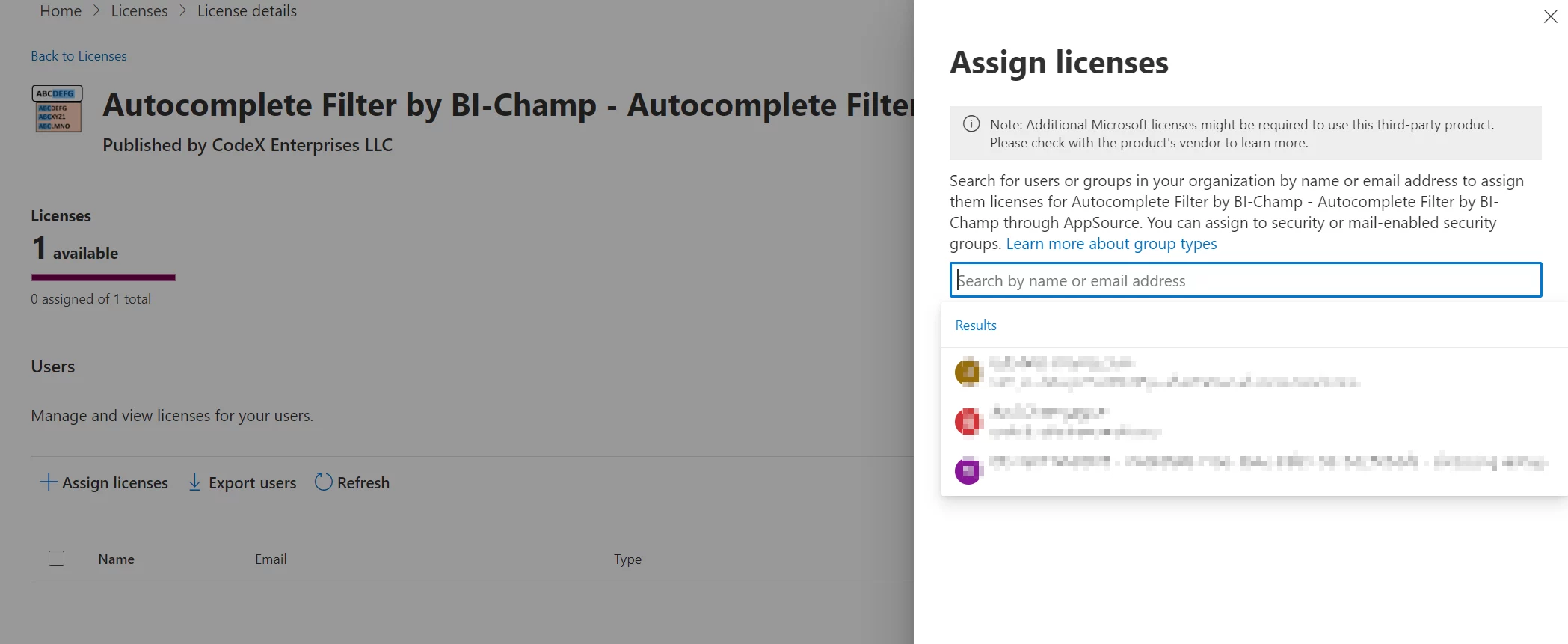
After clicking on "Assign licenses" you should have a chance to add users (up to and including the available count):
5. Your visual running in Power BI Service should no longer show a watermark reminding you that it needs to be licensed. This may take a few minutes, and you may need to save and reopen your report.